
Subtitle a Video
Instructions
Adding captions or translations is a great way to take your favorite WordPress.tv video and share it with an even broader audience! It is easy to help us with this goal by submitting a caption or translation file for your favorite video. Just follow the steps below!
Step-by-step video
Need to be created
Text instructions – Creating and uploading a new caption file
Tools used:
- Vibe (transcription)
- Subtitle Edit (translation & editing)
- GoTranscript Converter (SRT → TTML)
Step 1 – Copy the video URL
Locate the “Med” or “Low” link in the Download section of the sidebar.

Right-click on that link and select the option that will copy the video URL. Each browser has slightly different terminology for this. Yours may say “Copy Link”, “Copy Link Address”, “Copy Link Location”, “Save target as” or something similar.
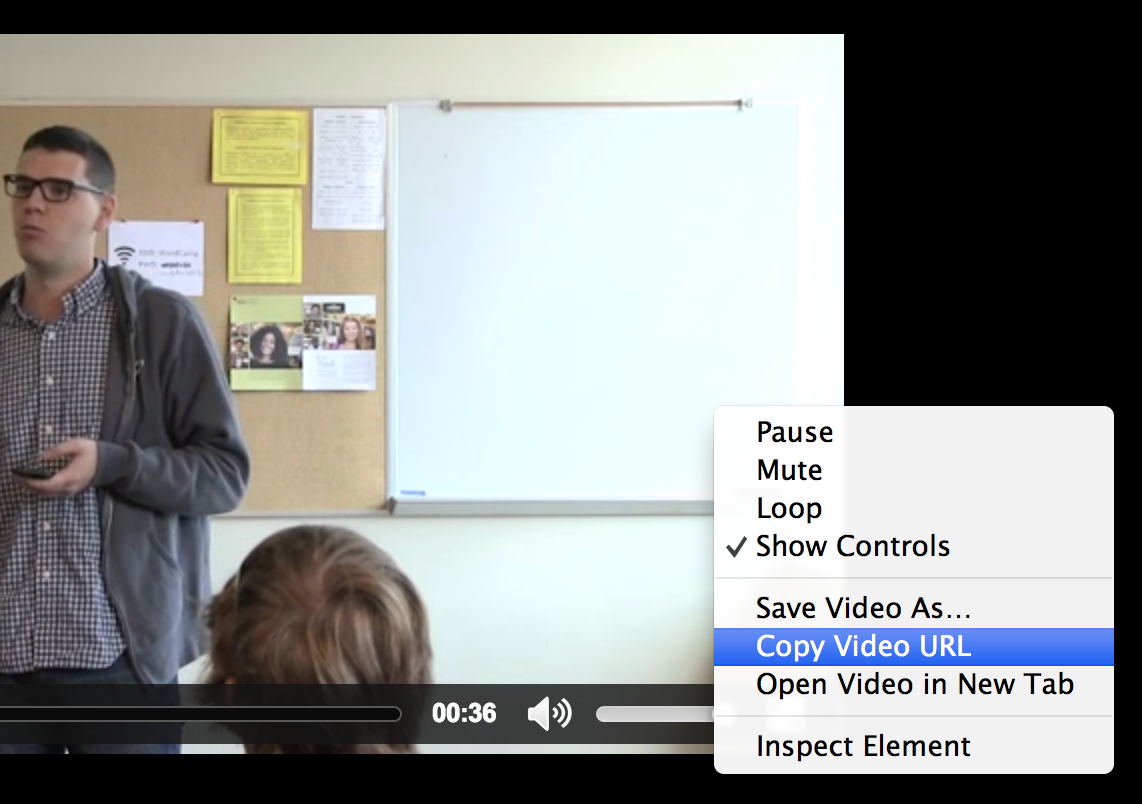
Step 2 – Extract subtitles from the video
- Open Vibe and load the MP4 file
- Vibe automatically transcribes the speech in the video language
- Download the result as an SRT file (*.srt)
Step 3 – Translation (Subtitle Edit)
- Open Subtitle Edit
- File → Open – load the *.srt file.
- Run auto-translation: `Auto translate → Auto translate…`
– Engine: Google Translate V1 (free, no API key needed)
– Source: Video language / Target: English or any other WP language
– Click Translate - Both languages appear side by side
Step 3 – Proofreading & Correction
Review and correct both tracks, the original transcription and the English translation. Automatic transcription and machine translation are not perfect, especially with proper names, technical terms, or unclear audio.
When done, save both files separately. It’s a good habit to add the language to the filename (e.g. `video_pl.srt` and `video_en.srt`) so both files are easy to tell apart.
If you already have two separate files (PL + EN) and want to open them together: `File → Open` (English) + `File → Open Original` (Polish)
Step 4 – Convert *.srt to *.ttml (GoTranscript)
- Go to https://gotranscript.com/subtitle-converter
- Upload the *.srt file
- Select TTML as output format
- Download the *.ttml file
Step 4 – Upload your caption file
Return to the WordPress.tv video page, and click on the “Subtitle this video” button at the bottom of the sidebar.
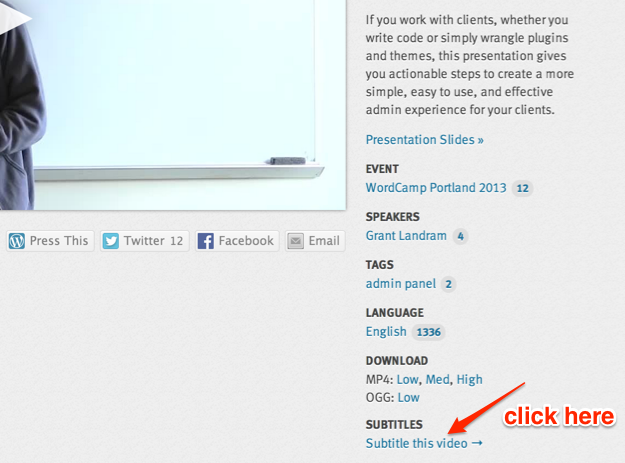
On the next page, choose your file for upload, select your language from the drop-down selector, and then click Submit button. 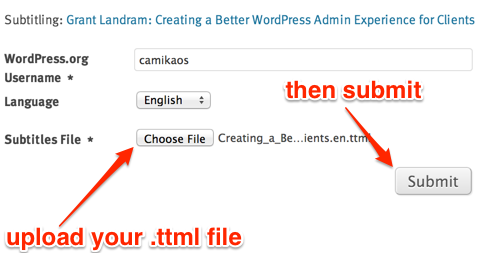
Success! Your subtitles will go through a short moderation process, and then you can enjoy your newly captioned video in all its text-enriched glory. Thank you for helping out! 🙂
An  Contraption
